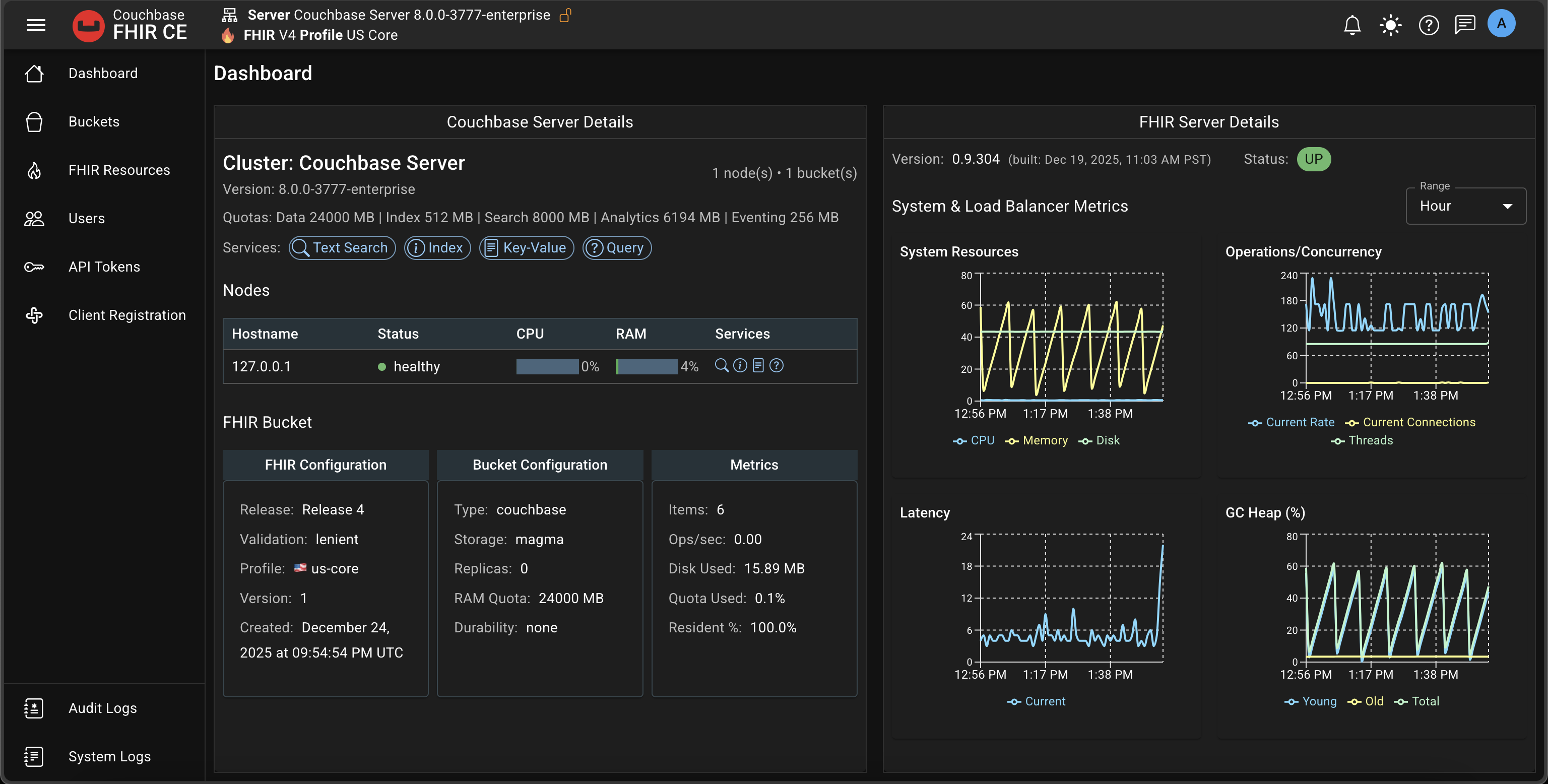
Dashboard

Let’s start with the initial Admin UI flow. On this page, you’ll convert a Couchbase bucket into a FHIR bucket and confirm everything is healthy.

Goal

You’ll learn how to:

  • Open the Admin UI and verify cluster readiness
  • Convert a bucket to a FHIR bucket (US Core, Lenient)
  • Troubleshoot common startup and connection issues

1) Open the Admin UI

Navigate to the Admin UI in your browser:

  • URL: http://<your-host-or-ip>/

This brings up the dashboard. We’ll cover each section in depth later; for now, verify the basics.

Admin UI dashboard

2) Verify Couchbase Cluster Readiness

Check the following on the dashboard:

  • Couchbase Server version is displayed
  • Node services include at least these four: Data, Query, Index, Search
  • The bucket you created in Couchbase appears here
Minimum services

FHIR requires Data, Query, Index, and Search. Analytics/Eventing are not required for the initial setup.

3) Convert a Bucket to a FHIR Bucket

In the Admin UI, locate your bucket and click Add FHIR to begin conversion.

Add FHIR to bucket

You’ll be asked to select Validation Settings and a Profile.

Quick choice for now

We’ll explore these options in detail later. For now, choose:

  • Validation: Lenient
  • Profile: US Core

Click Next: Review Configuration.

Review configuration before conversion
Irreversible action

Converting to FHIR updates the bucket structure and metadata. This action is irreversible.

Confirm by clicking Convert to FHIR. The process typically completes in a few seconds.

Conversion progress and completion

After conversion, the bucket should clearly show it’s a FHIR bucket, e.g., us-core:lenient.

Bucket post-conversion showing FHIR profile

Validation Settings

When converting a Couchbase bucket into a FHIR-compliant store, validation ensures that all resources conform to the FHIR specification and optional implementation guides such as US Core. Couchbase FHIR CE allows you to control the depth and strictness of validation based on your environment and data quality.

Validation Mode

Defines how strictly incoming FHIR resources are validated.

Strict

  • Rejects any validation errors — only fully compliant resources are stored.
  • Ideal for production or regulated environments where data integrity is critical.
  • Ensures every resource meets FHIR and selected profile constraints (structure, types, required elements, valuesets).
  • Requests that fail validation return HTTP 400 with detailed error messages.

Lenient

  • Logs warnings for validation errors but continues processing.
  • Accepts the resource even if some fields fail validation.
  • Useful for development, integration testing, or when ingesting data from mixed-quality sources.
  • Balances compliance and flexibility — errors are visible in logs but do not block ingestion.

Disabled

  • Skips validation entirely for maximum performance.
  • Recommended only for trusted data pipelines or when validation is handled externally.
  • Useful for large-scale imports or synthetic data loading where structure is guaranteed.
tip

Validation adds CPU overhead — use Lenient or Disabled for bulk operations.

Validation Profiles

Controls which FHIR Implementation Guide (IG) is used to validate resource structure and values.

None

  • Performs base FHIR R4 validation only.
  • Checks standard FHIR structural rules:
    • Field types
    • Required elements
    • Enumerations and primitive constraints
    • Does not enforce US Core or regional extensions.
    • Suitable for generic FHIR projects or non-US implementations.

US Core 6.1.0

  • Enforces the HL7® US Core Implementation Guide 6.1.0, including:
  • Mandatory profiles for key resources (Patient, Observation, Condition, etc.)
  • Required extensions and bindings
  • ValueSet constraints (e.g., specific coding systems, LOINC, SNOMED)
  • Validates both structure and terminology bindings (e.g., codes must belong to specific value sets).
  • Ensures compatibility with US Core tests such as HL7 Inferno.
  • Uses HAPI FHIR validator and NPM IG packages under the hood.

Example Scenarios

EnvironmentValidation ModeProfileReason
Production (US)StrictUS Core 6.1.0Full compliance for EHR / interoperability
DevelopmentLenientNoneFlexibility to test payloads and iteratively fix issues
Bulk Import / Synthetic DataDisabledNoneMax speed, external validation assumed
Testing with InfernoStrictUS Core 6.1.0Pass Inferno’s “Must Support” and validation tests

Summary

SettingDescription
ModeControls how validation errors are handled (Strict, Lenient, Disabled)
ProfileChooses which ruleset to validate against (None = base FHIR, US Core = extended)

By tuning these options, Couchbase FHIR CE can adapt to development, testing, and production needs — ensuring your FHIR data is as accurate, compliant, and performant as your use case demands.

Addtional Buckets

When you create buckets from the Couchbase Consoe after starting Couchbase FHIR Server, you do not need to restart the FHIR containers. The new bucket will appear in the Admin UI automatically.

Admin UI dashboard

You can either convert this bucket to FHIR as a new tenant, or use that for other puposes too.

Troubleshooting

If your dashboard does not come up, you might see an error screen like this:

Dashboard error screen

First, check logs:

cd ~/couchbase-fhir-ce
docker-compose logs -f

Common symptoms (authentication/auto-connection):

fhir-server-1 | 23:46:31.428 ERROR com.couchbase.io - [com.couchbase.io][SaslAuthenticationFailedEvent][47ms] User authentication failed; check username and password. If you are using LDAP you must either connect via TLS (recommended), or enable _only_ PLAIN in the allowed SASL mechanisms list on the PasswordAuthenticator (without TLS this is insecure and will present the user credentials in plain-text over the wire). {"circuitBreaker":"DISABLED","coreId":"0xe8ad508500000001","remote":"host.docker.internal:11210","status":"UNKNOWN","type":"KV","xerror":{"ref":"4f30c6b7-a347-4afc-aacf-5b07c70d97b3"}}
fhir-server-1 | 23:46:35.076 ERROR c.c.a.c.service.ConnectionService - ⏰ Connection validation timed out for default: likely authentication failure
fhir-server-1 | 23:46:35.076 ERROR c.c.a.c.s.ConfigurationStartupService - ❌ Auto-connection failed: Connection failed
fhir-server-1 | 23:46:35.076 INFO c.c.a.c.s.ConfigurationStartupService - 📋 FHIR Server started but no connection established - use frontend or REST API to connect

If you see these, verify and fix your config.yaml, then restart:

# Edit the configuration inside the checked-out couchbase-fhir-ce directory
vi couchbase-fhir-ce/config.yaml

# Restart the stack
docker-compose restart
Important

Make sure you edit the config.yaml inside your couchbase-fhir-ce folder (the one the container reads), not a copy elsewhere.

On success, your logs should include lines like:

fhir-server-1 | 23:51:18.654 INFO c.c.a.c.s.ConfigurationStartupService - ✅ num-kv-connections: 8 (from config.yaml)
fhir-server-1 | 23:51:18.654 INFO c.c.a.c.s.ConfigurationStartupService - 🔧 kv-timeout-seconds: 10 (default)
fhir-server-1 | 23:51:18.655 INFO c.c.a.c.s.ConfigurationStartupService - 🔒 Transaction durability: NONE (suitable for development/single-node)
fhir-server-1 | 23:51:18.655 INFO c.c.a.c.s.ConfigurationStartupService - 🔗 Attempting auto-connection to: host.docker.internal (Server)
fhir-server-1 | 23:51:20.558 INFO c.c.a.c.s.ConfigurationStartupService - ✅ Auto-connection successful! FHIR Server is ready for API requests
fhir-server-1 | 23:51:20.558 INFO c.c.a.c.s.ConfigurationStartupService - 🚀 Backend startup complete - FHIR APIs are now available
fhir-server-1 | 23:51:20.559 INFO c.c.a.c.s.ConfigurationStartupService - 💡 Collections will be warmed up automatically on first access to each FHIR bucket
You’re ready

With a FHIR bucket created and the Admin UI healthy, you can proceed to import data, explore search, and manage tenants.